
Download 20 20 – Free Design & Photography Software for Windows
Overview & Core Features
20 20 is a free, lightweight design and photography program that targets Windows users looking for a capable graphics editor without the bloat of premium suites. First released in 2012 by Hotfreeware, the application has amassed more than 30,000 downloads worldwide, with active communities in countries such as Peru, Botswana, and Israel. Despite its modest file size, 20 20 delivers a surprisingly rich set of tools for image manipulation, vector drawing, and basic layout design. The current stable build, version 2.2.7, was last updated on June 17 2012 and remains compatible with Windows 95 and later, making it an ideal choice for legacy systems or machines with limited resources.
Key Feature List
- Intuitive toolbar with drag‑and‑drop support for layers and objects.
- Basic raster editing tools including brush, eraser, clone stamp, and gradient fill.
- Vector drawing capabilities such as pen, shape, and text path tools.
- Layer‑based workflow with opacity, blending modes, and group management.
- Built‑in color palette and gradient editor for precise color control.
- Support for common image formats: JPEG, PNG, BMP, GIF, and TIFF.
- Batch processing for resizing or converting multiple files at once.
- Export options for web‑ready assets, including optimized PNG‑8 and JPEG‑2000.
- Customizable keyboard shortcuts and workspace layouts.
- Lightweight installer that occupies less than 15 MB of disk space.
The feature set is deliberately focused on everyday design tasks, allowing hobbyists, students, and small‑business owners to create flyers, social‑media graphics, and simple photo retouches without a steep learning curve. While 20 20 does not aim to replace industry‑standard tools like Adobe Photoshop or Illustrator, its balance of simplicity, speed, and zero cost makes it a compelling entry point for anyone who needs a reliable graphics editor on an older Windows machine.
Installation & First‑Time Usage
Getting started with 20 20 is straightforward. The download package is a single executable (20_20_setup.exe) that can be obtained from the official Hotfreeware mirror or reputable software directories. Follow these steps for a smooth installation:
- Download the installer and verify the file size (approximately 13 MB) to ensure integrity.
- Right‑click the installer and select Run as administrator to avoid permission issues on Windows 95‑based systems.
- The setup wizard will prompt you to choose an installation folder. By default, it suggests
C:\Program Files\20_20, but you can opt for a custom path if you have limited space on the system drive. - Accept the End‑User License Agreement, then click Install. The process usually completes within a minute on modest hardware.
- After installation, launch the program from the desktop shortcut or the Start menu. The first launch will display a brief welcome screen that offers to import default brushes and color palettes.
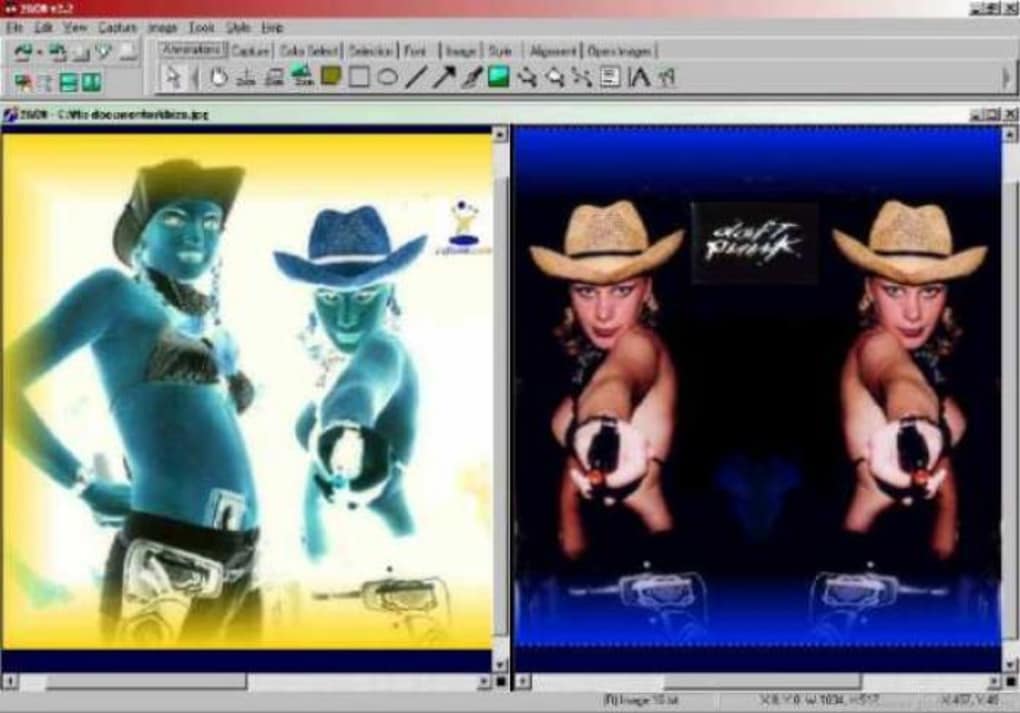
Upon opening 20 20, you’ll be greeted by a clean workspace divided into three main panels: the toolbar on the left, the layers panel on the right, and the central canvas area. To create a new project, select File > New or press Ctrl+N. You can specify canvas dimensions in pixels, inches, or centimeters, making it easy to prepare assets for print or digital media. The program also supports opening existing files via File > Open or by dragging an image directly onto the canvas.
For newcomers, the built‑in tutorial can be accessed from the Help menu. It walks you through essential tasks such as adding a new layer, applying a filter, and exporting an image for web use. Because 20 20 emphasizes a low‑learning‑curve design, most users feel comfortable after completing the short tutorial and experimenting with the basic tools.
Compatibility & System Requirements
20 20 was engineered with legacy Windows environments in mind. It runs natively on Windows 95, 98, ME, 2000, XP, Vista, and even Windows 7, though the latter may not receive official support from the developer. The program does not require a 64‑bit processor and works perfectly on 32‑bit systems, which is a significant advantage for users with older hardware.
Minimum Hardware Recommendations
- CPU: 800 MHz or faster (Intel Pentium III or equivalent).
- RAM: 256 MB (512 MB recommended for smoother layer handling).
- Hard Disk Space: 30 MB free for installation and temporary files.
- Graphics: Any DirectX‑compatible graphics card; no GPU acceleration required.
- Display: Minimum resolution of 800 × 600 pixels; higher resolutions improve UI scaling.
Because the software does not rely on modern APIs such as Direct2D or OpenGL, it can be installed on virtual machines and remote desktop sessions without performance penalties. Users who run Windows in a sandboxed environment (e.g., Sandboxie) will also find 20 20 functional, provided the sandbox allows write access to the installation directory.
While the application is strictly Windows‑only, you can run it on macOS or Linux through compatibility layers like Wine. Users have reported successful installations on macOS 10.6‑10.10 and popular Linux distributions (Ubuntu, Fedora) using Wine 1.6 or newer. However, official support is limited to Windows, so any cross‑platform usage should be considered experimental.
Pros, Cons, FAQ & Final Verdict
Pros & Cons
- Pros
- Completely free with no hidden fees or registration requirements.
- Extremely lightweight – ideal for older PCs and low‑spec laptops.
- Simple, intuitive UI that shortens the learning curve for beginners.
- Supports essential raster and vector tools in a single package.
- Runs on Windows 95 and newer, ensuring broad compatibility.
- Cons
- Last official update was in 2012; no recent feature enhancements.
- Lacks advanced features such as non‑destructive editing, CMYK support, or 3D capabilities.
- No native support for macOS or mobile platforms (iOS, Android).
- Limited community resources and tutorials compared to mainstream editors.
- Occasional UI scaling issues on high‑resolution modern displays.
Frequently Asked Questions
Is 20 20 safe to download?
Yes. When obtained from the official Hotfreeware site or trusted software repositories, 20 20 is free of malware and does not contain adware or spyware.
Can I use 20 20 for commercial projects?
Absolutely. The license permits both personal and commercial use without any royalty fees.
What image formats can 20 20 export?
The program supports exporting to JPEG, PNG, BMP, GIF, and TIFF. It also offers optimized web formats such as PNG‑8.
Does 20 20 run on Windows 10?
Yes, although the software was designed for older versions, it runs on Windows 10 in compatibility mode without major issues.
Are there any hidden costs or in‑app purchases?
No. 20 20 is completely free and does not prompt for upgrades, subscriptions, or additional plugins.
Final Verdict & Call to Action
20 20 fills a niche that many modern graphics editors overlook: a truly lightweight, free tool that still offers a respectable set of design features. Its compatibility with legacy Windows versions makes it a go‑to solution for schools, NGOs, and small businesses that operate on older hardware. While power users may outgrow the application due to its limited advanced capabilities, anyone needing a quick, secure, and cost‑free graphics editor will find 20 20 more than adequate.
Ready to give 20 20 a try? Click the download button below to start your free installation and unleash a simple yet capable design tool on your Windows PC today.







